“Page builders” allow much more sophisticated layouts and content than the standard WordPress editor allows. The two most popular page builders on the market are Elementor and Divi. Your website has been created with the Divi page builder and as we have a developer license for Divi, this means you do not have to pay for this plug-in. Elementor, on the other hand, costs $89 per website per year.
Overview
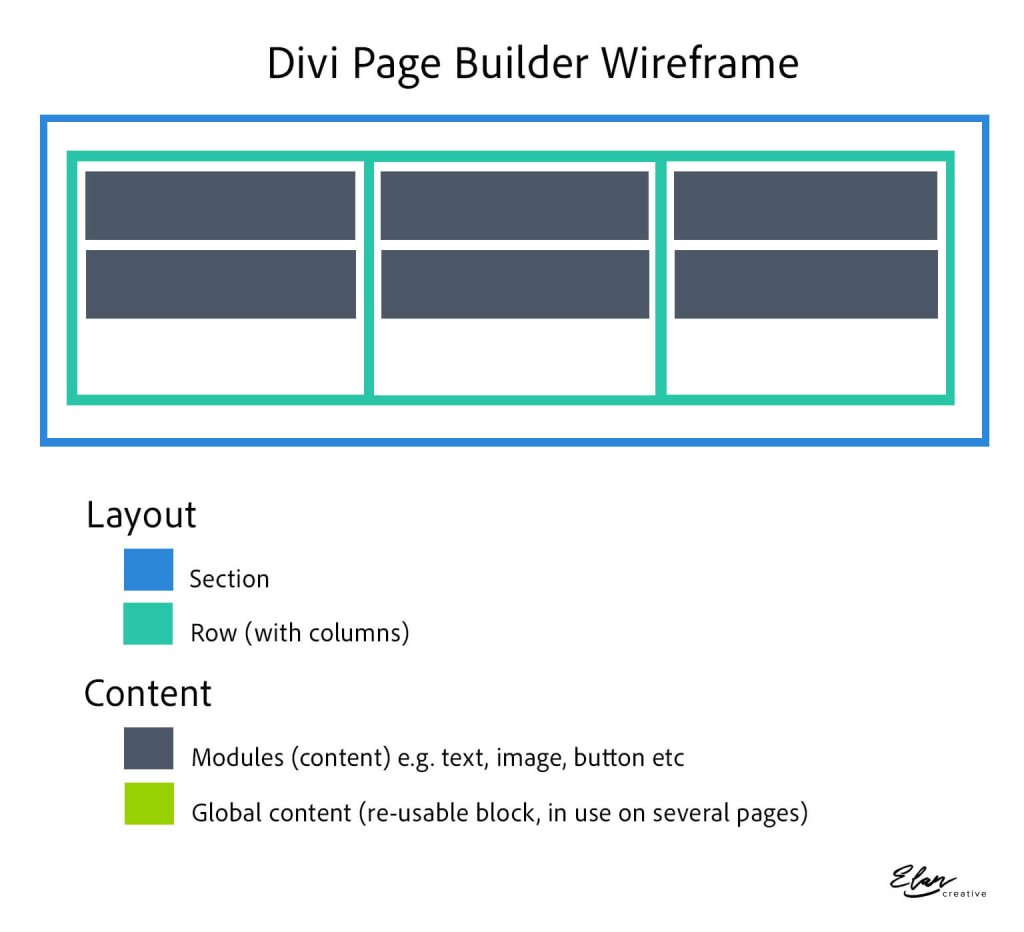
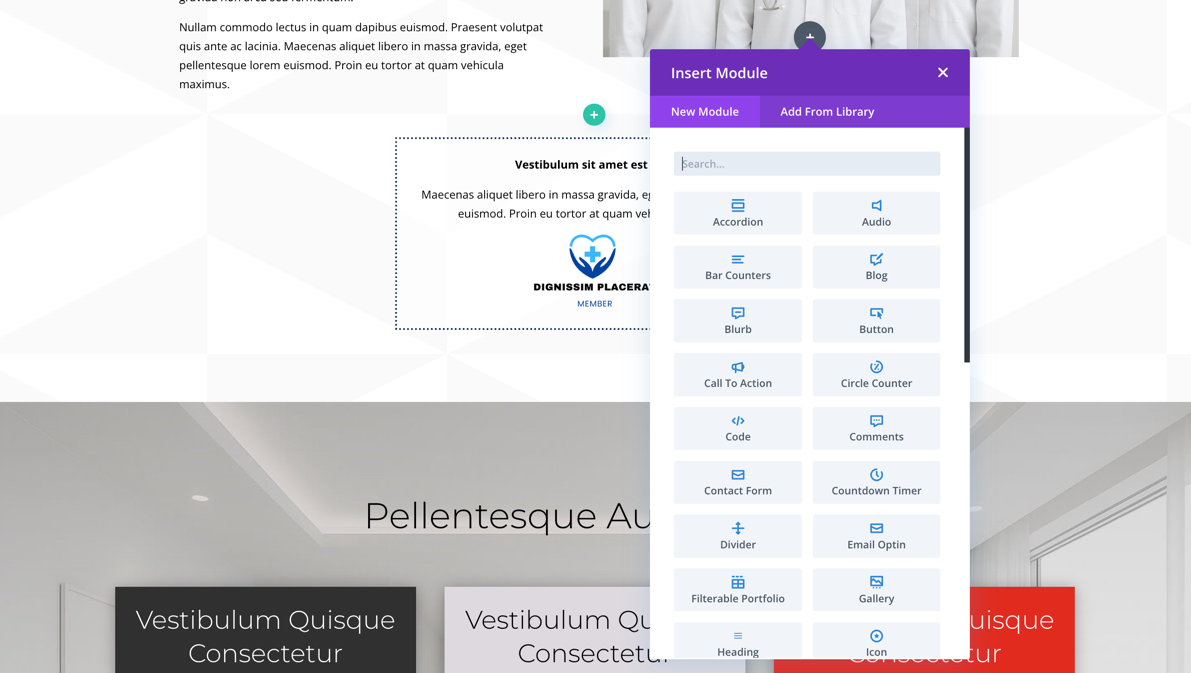
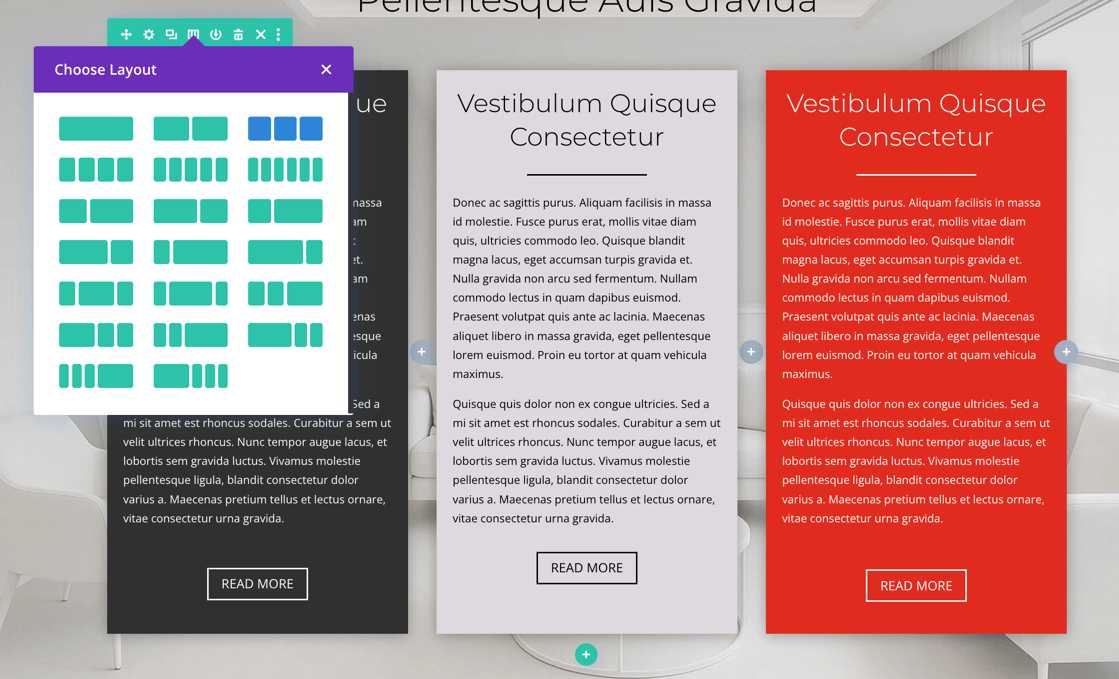
I’m going to share a little background about the builder so that editing is easier. Divi pages are made up of sections, and within a section are rows (each row can have a single or multiple columns). These sections and rows are used to position the layout of the page. Content blocks are then placed inside the rows e.g. text, images, products, buttons, newsletter opt-ins etc. Each of the elements are colour-coded and the colours are useful to know, so that you know exactly what you’re editing. Use this guide as a quick reference:
How to edit a page using the Divi page builder
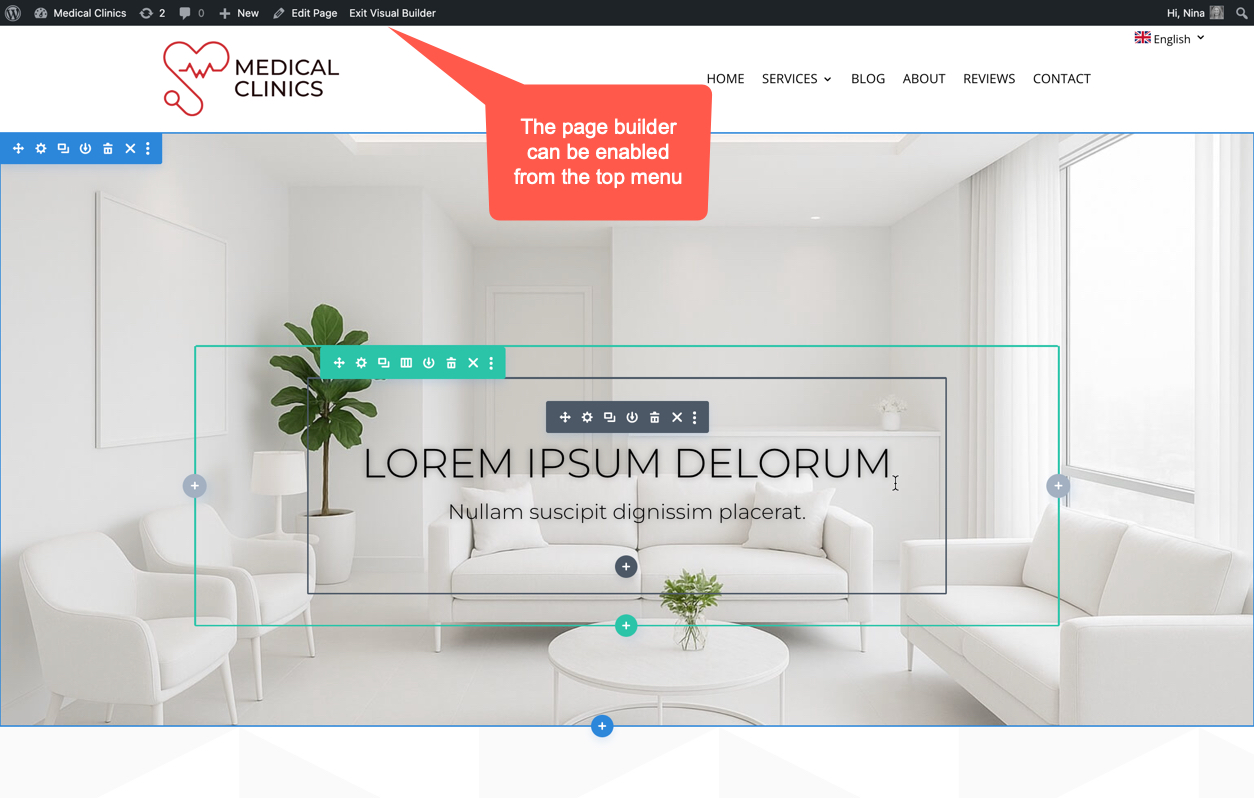
How to edit the homepage banner
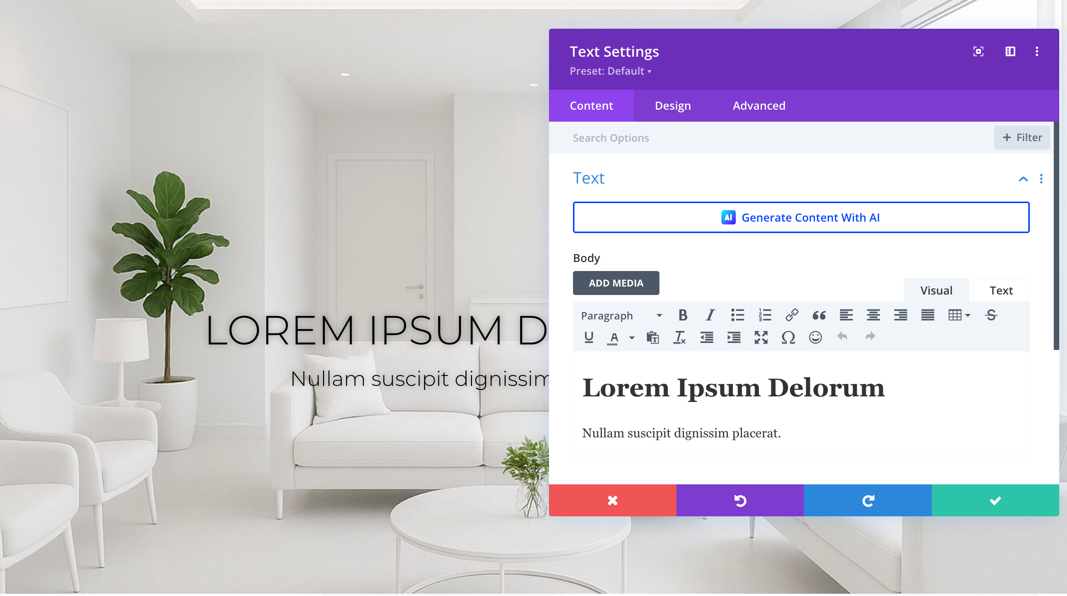
Working with content blocks
Working with rows and columns
Global content blocks
Global blocks are bright green and indicate content that appears in several places on your website. If you edit this then all pages that use this global block will change as well as the page you are editing. The menu and the the footer are always global elements as they appear on all pages. You will mostly never need to change the header or the footer, so be careful not to edit these bright green blocks. 
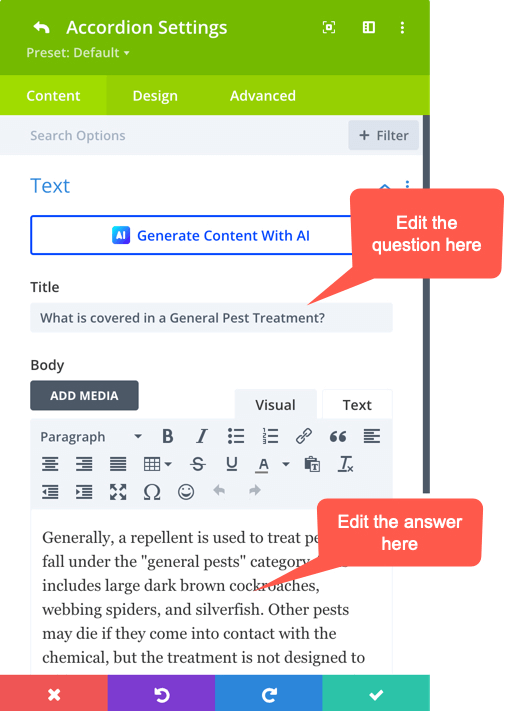
The Accordian Module (for FAQs)
Click the settings/gear icon to edit the module (normally dark grey but the screenshot shows a global block which I’ve re-used in several different pages of this website, so it’s bright green)
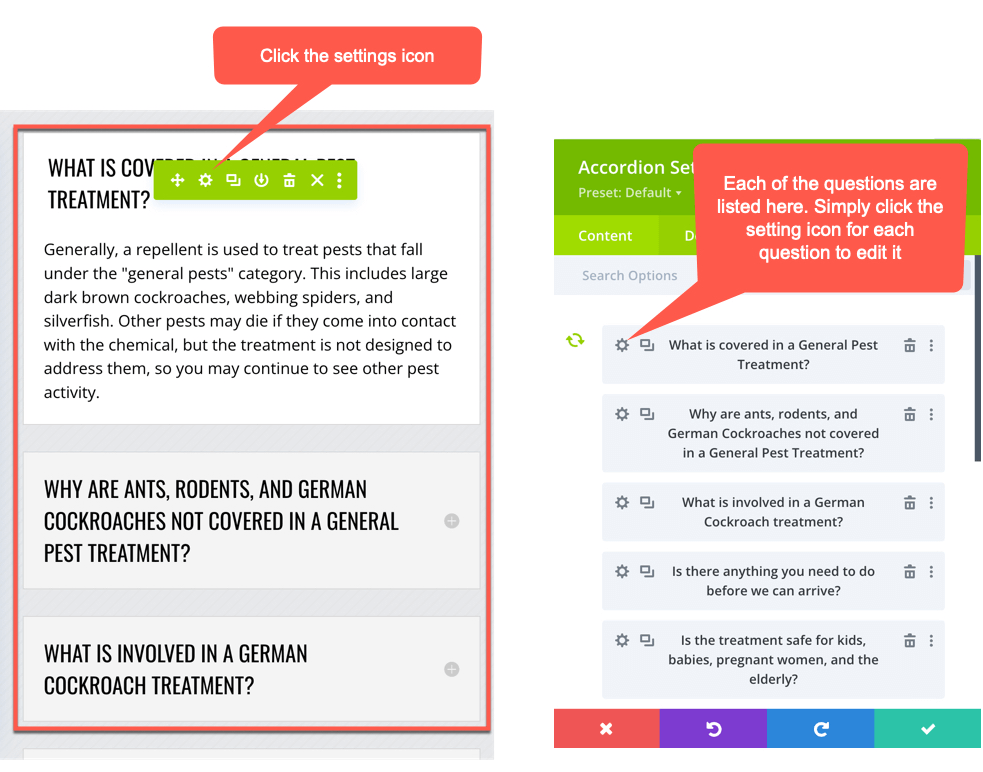
Then click the settings/gear icon next to the question. you want to edit