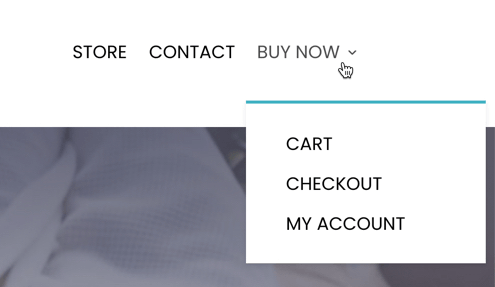
Some elements of your website are edited directly in WordPress instead of using the Divi page builder.
How to create new pages
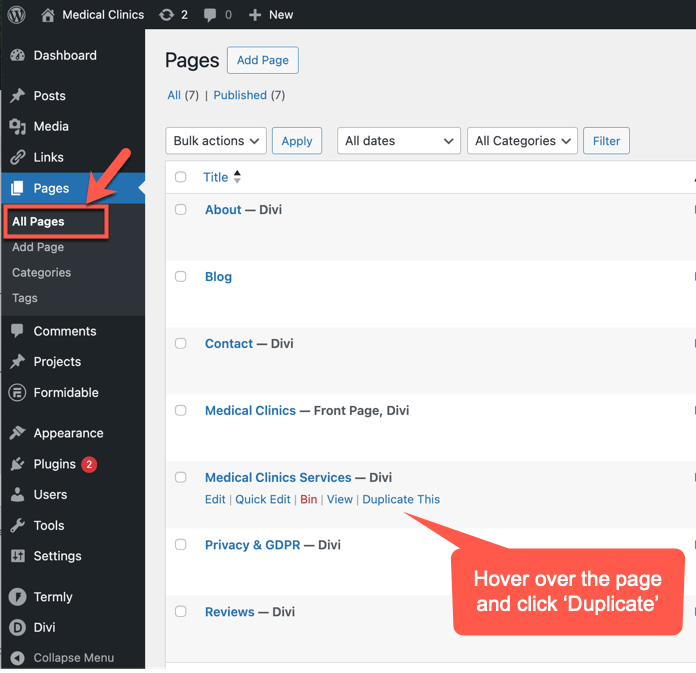
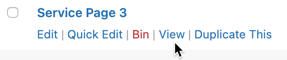
Choose an existing page which already has a layout similar to the way you want your new page to look. You’re going to duplicate the page and then edit it, rather than starting from scratch. This is important when you have pages which have been created with a page builder as it saves a huge amount of time. Go to All Pages in the left menu, hover over the page you want to copy and click ‘Duplicate This’
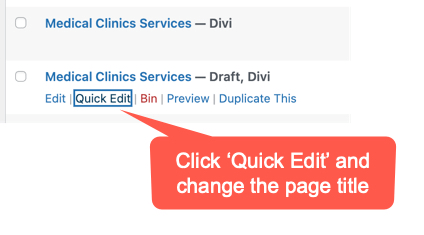
Now click ‘Quick Edit’ on the newly created page:
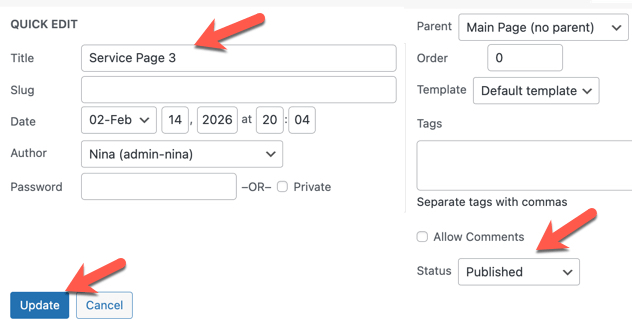
Change the page title to your new page title, change the status to Published, and click the Update button:
To edit your new page simply hover over the page and then click ‘View’ to open the page. Then click ‘Enable Visual Builder’ in the top toolbar:
How to create new blog posts
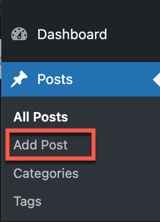
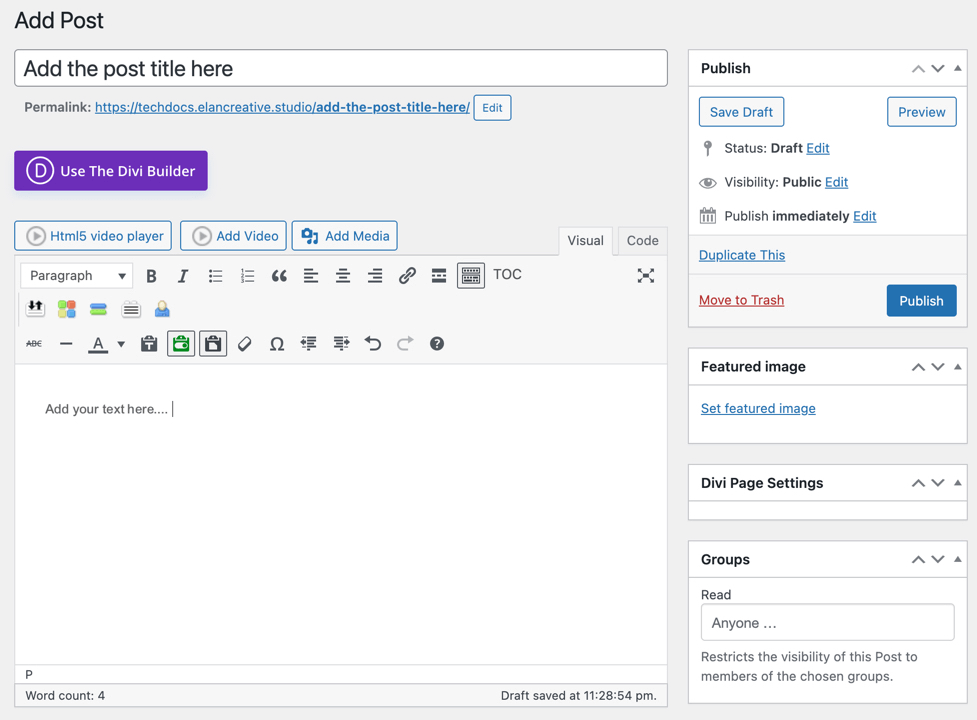
Click ‘Add Post’ in the left menu: Fill the form in with the title and content. To add an image to the blog post, click the ‘Set featured image’ link in the right sidebar. When you have finished the post, click the ‘Publish’ button on the right. Blog articles automatically appear in the blog page once published.
Important: text formatting
If you are copy/pasting text from Word or similar, it’s very important that you paste without formatting. On a Mac use a Cmd + Shift + V. On Windows use Ctrl + Shift + V. If you do not do this then the text will be incorrectly formatted i.e. it will paste formatting from wherever you copied it.
How to edit the menu
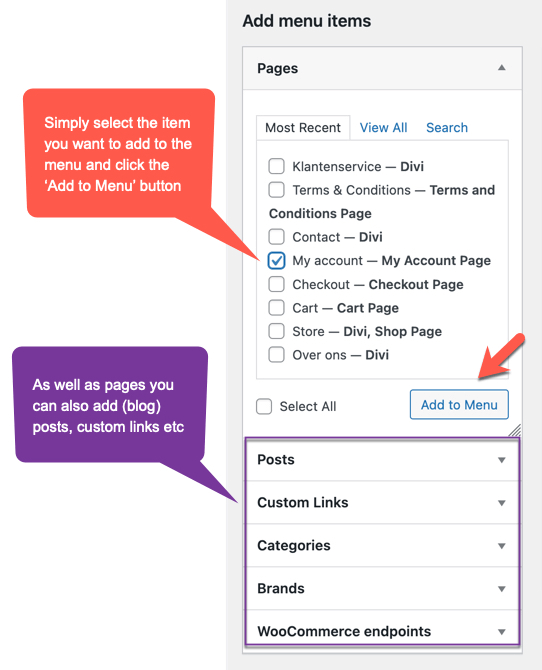
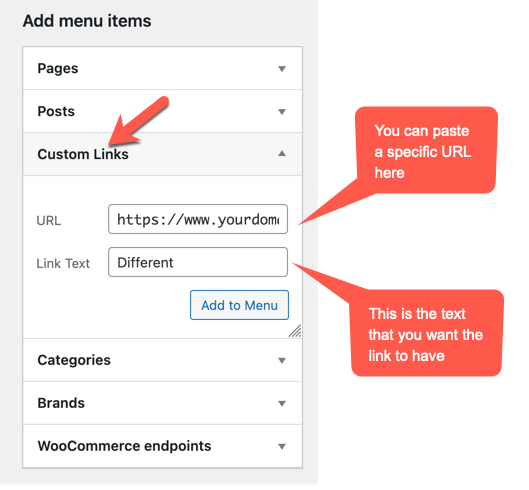
How to add new items to the menu
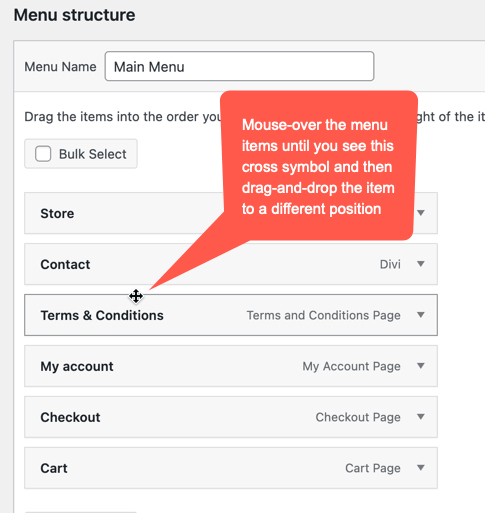
How to move the position of menu items
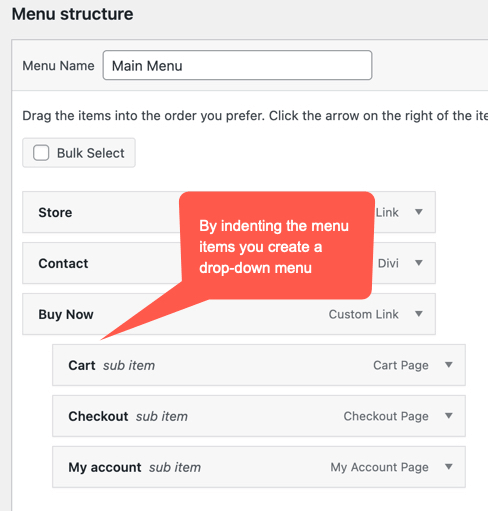
How to create a drop-down menu
On the front end of the website, the menu looks like this: